Showing posts with label snap. Show all posts

Manage Text Message & Contacts from desktop PC with ease!


Efficasoft Mobile Expres

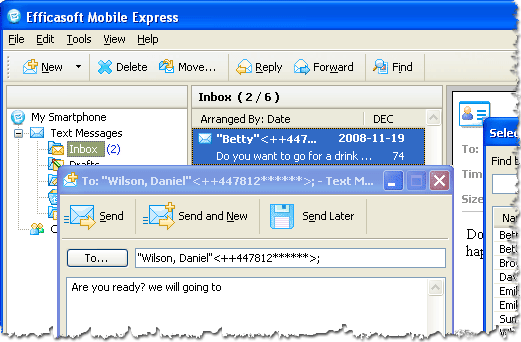
Efficasoft Mobile Express is a utility helps you managing text message (sms) & contacts from your desktop pc or laptop with ease. And the most important is: ITS FREE!

Its available for download in Efficasoft official website. Try it, and you'll love it!

[Windows Mobile 6.1 Smartphone] Disable/Enable Threaded SMS

If you want to disable the new threaded SMS feature, go to
HKCU\Software\Microsoft\Inbox\Settings\OEM\
(create if necessary) and edit/create the following DWORD:

SMSInboxThreadingDisabled=1

[Windows Mobile 6.1 Smartphone] Enable/Disable Recipient Address AutoComplete in SMS

To enable the new recipient address suggestions feature in the SMS application, go to
HKLM\System\Inbox\RecipientAutoComplete
and set/change the following DWORD:

MaxSuggestions=6 (for example)

Reducing or Increasing The Volume of Camera Capture Sound (HTC Snap)

There are so many hidden settings in Windows Mobile 6.1 Standard Edition we could explore. I was playing with my HTC Snap when I found this one. Settings for camera capture sound volume! Try to reduce (I doubt you will increase the volume) to the value that suit your ear.
The key can be found at this path:
HKEY_LOCAL_MACHINE\Software\HTC\Camera\Captparam

HTC Snap (Windows Mobile 6.1 Standard) Dock Operator Bar Settings How To

See the different? How to do that?
Again, you need a registry editor (find which one suits you most while me myself prefer to use Resco Registry).
  • Go to: HKEY_LOCAL_MACHINE\Software\Microsoft\CHome
  • Find key named: DockOperatorBar which valued as 0 by default
  • This is it! Change the value of this key to "1"
  • Restart your phone!

HTC Snap (Windows Mobile 6.1 Standard) ClearType Settings How To

You must be wondering just where is the settings to make fonts in HTC Snap to be ClearType just like we can easily find it at touchscreen based PDA phone. Yup! There is no settings in Windows Mobile 6.1 Standard Edition to make fonts looks smoother. But if you crazily want it, here is how to do it.
  • First you need a registry editor for smartphone. I use Resco Explorer add-ins registry editor. Then go to:
\HKEY_LOCAL_MACHINE\System\GDI
  • Then create new KEY here name it as "Cleartype" (notice that you create it in GDI, not inside any other key).
  • Then......that's it! Restart your phone, and....tada!